About BTCC
- 1How to Trade Crypto Futures Contracts on BTCC
- 2How to Use BTCC Bonus to Trade: A Beginner’s Guide to Risk-Free Crypto Trading
- 3How to Deposit and Withdraw Crypto on BTCC
- 4About BTCC Fees – A Beginner’s Guide (2026 Updated)
- 5How to Buy USDT on BTCC — Beginner’s Step-by-Step Guide
- 6How Does BTCC Work?
- 7About BTCC 0-Fee Campaign: A Complete Guide to Eliminating Crypto & TradFi Trading Costs
- 8How to Trade Crypto with BTCC on TradingView
- 9How to Withdraw Crypto on BTCC
- 10BTCC Demo Trading Guide (2026): How to Practice Crypto Futures Trading Risk-Free
- 11BTCC Referral Code "1Z1OTN" for June 2026
- 12BTCC Review 2026: Best Crypto Futures Exchange
- 13How to Register an Account on BTCC
- 14How to Deposit Crypto on BTCC
- 15BTCC Crypto Leverage Trading Guide 2026
- 16BTCC Deposit Bonus & Campaign in 2026
- 17How to Login BTCC Account in 2026: Step-by-Step Guide for Beginners
- 18How to Trade on BTCC in the US: Step-by-Step Guide for Beginners
- 19Is BTCC Available in the USA? (July 2026 Updated Guide)
- 20BTCC App Review 2026: Is It Safe and Legit?
How to Trade Crypto with BTCC on TradingView
 Written by Fiona FLast updated:
 TradingView now supports BTCC’s perpetual futures trading, allowing customers to access their BTCC accounts straight from the TradingView Trading Panel. Once your BTCC account is linked to TradingView, you may trade BTCC perpetual futures using the professional charting interface.(Currently, TradingView only supports BTCC Futures; Futures Pro and Spot trading are not yet accessible.)
TradingView offers advanced charting and technical analysis tools, allowing traders to make smarter decisions and capitalise on market opportunities more effectively.
How to Trade on TradingView Using BTCC
Step 1: Log in to your TradingView personal account
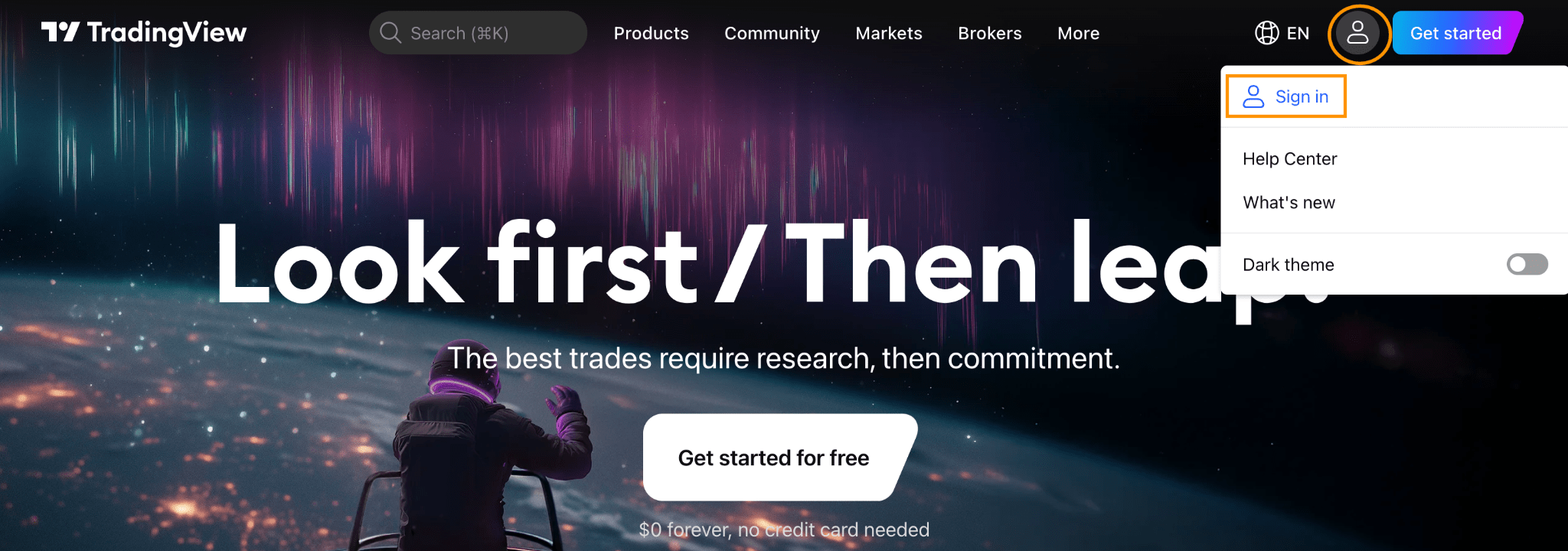
Go to the TradingView website, click on the account icon in the upper right corner, and select [Sign in].
If you don’t have an account yet, click [Sign up] to register a new one and create one using your email or social account.
Step 2: Searching for a Trading Pair
Once logged in, navigate to the search bar at the top of the TradingView interface. Enter the cryptocurrency pair you want to trade on
Step 3:Connecting your BTCC Trading Account
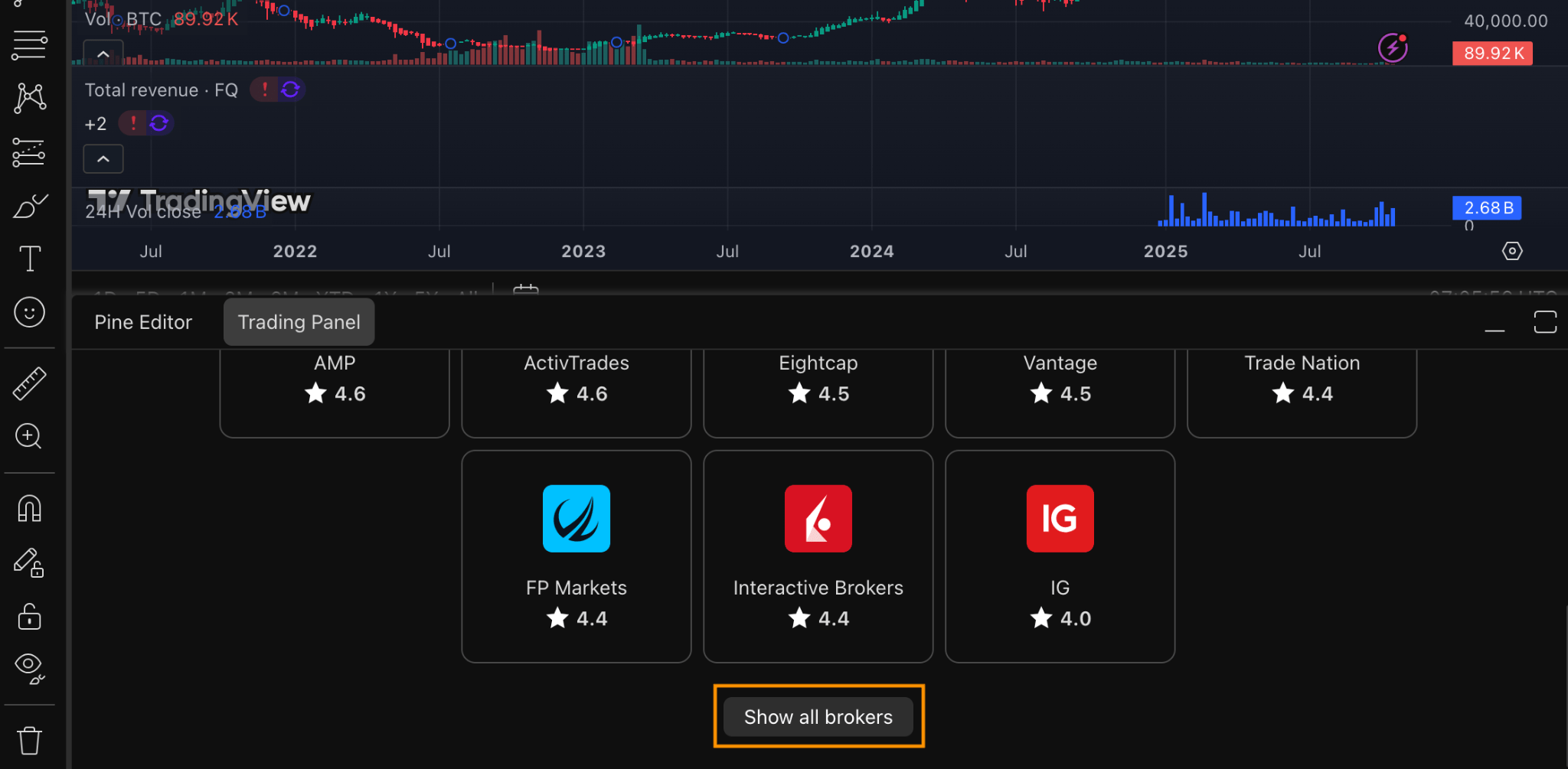
1.Find BTCC on TradingView in the trading panel or broker list.
2. Once you select BTCC, Click the [Trade] button and connect your accounts by entering your BTCC login credentials to authorize access.
Step 4: Start Trading
After authorization is completed, it will automatically return to the TradingView interface, where cryptocurrency transactions can be conducted directly on the chart. Click on the order panel to enter trading information and select “Buy” or “Sell”. Your order history on the BTCC perpetual contract will be automatically synchronized to your TradingView account.
Please note: TradingView currently only supports BTCC perpetual contract trading.
Step 5: Manage Trading and Account Settings
You can monitor positions in the order panel and edit or close them as needed.
In the chart settings, account mode and parameter configurations can be adjusted to make your trading experience smoother and more efficient.

Recommended Configuration
• Buy/Sell Buttons: Turn this on to display quick Buy and Sell buttons directly on your chart for faster order placement.
• Positions and Orders: Enable this to see all your open positions, pending orders, and stop levels on the chart.
• Reverse Position Button: Enable this if you want to quickly switch from a long to a short position (or vice versa).
• Profit and Loss Value: Turn this on to monitor your real-time profit and loss directly on the chart.
• Execution Marks: Keep this on to view where each trade was executed on the chart.
• Execution Labels: This adds text labels for each trade (optional — you can leave it off for a cleaner look).
• Extended Price Lines: Turn this on to extend your price levels across the entire chart for better visibility.
Enabling the One-Click Trading Feature
TradingView’s [One-click trading] feature allows traders to execute trades directly on the chart. Once enabled, you can place orders immediately without using the order window. Simply use the quantity calculator to set the desired order amount.
To enable this feature, navigate to [Settings] > [Trading] and check the box next to [One-click trading]. Click [Confirm] to activate.
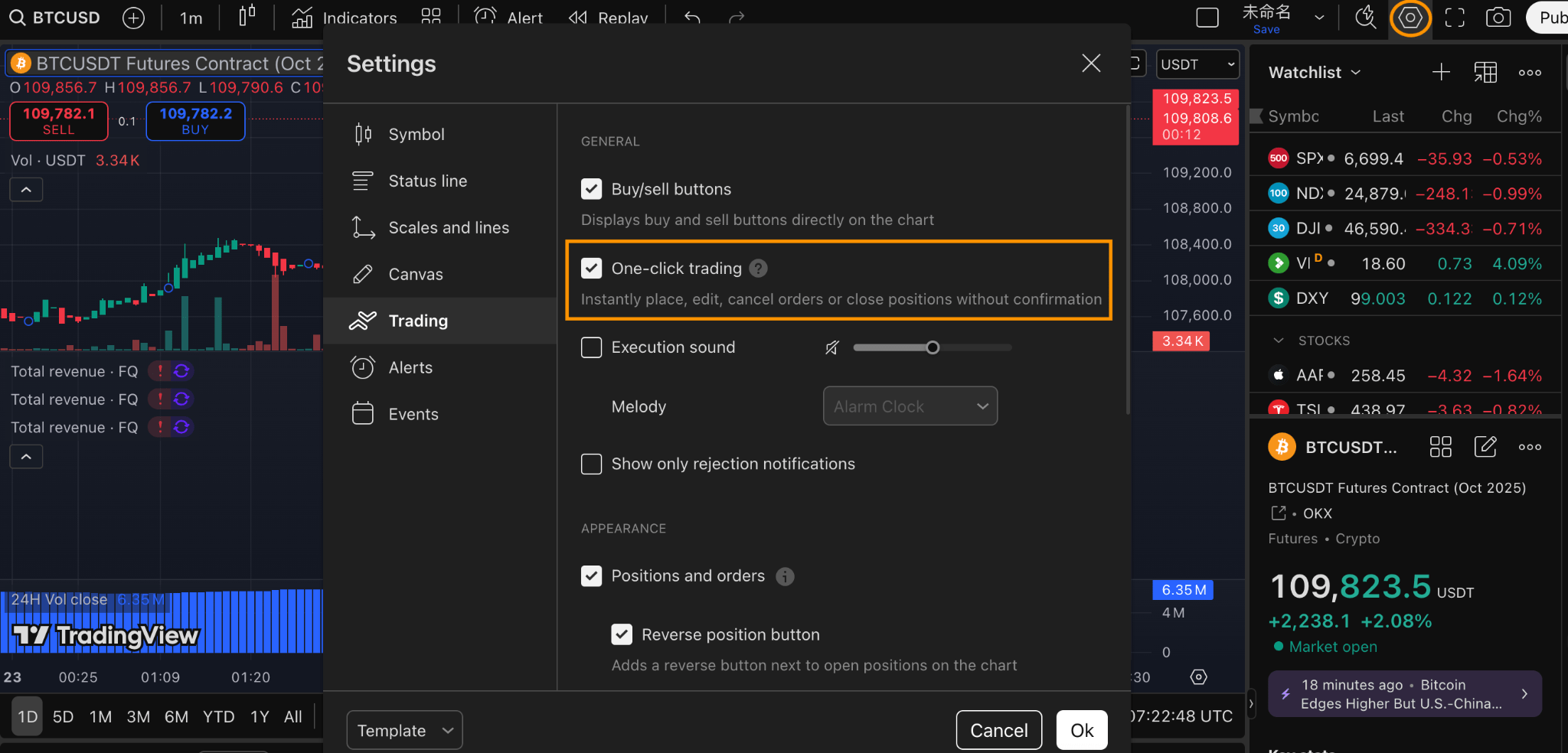
If the [Buy/Sell] buttons on the chart are enabled, you can execute market orders directly. If not, you can place various order types like limit orders and stop orders via the right-click menu.
Note:
• You can freely enable or disable the Buy/Sell buttons in “Trading Options.”
• Before your first trade, select a margin mode (“Isolated” or “Cross”). The system will automatically remember your choice for subsequent trades.
TradingView Hedging Mode Guide
TradingView does not support enabling Hedging Mode directly from its interface.
To activate it, you need to configure this setting within your BTCC account first:
- Log in to your BTCC trading platform.
- Go to Trade Settings → Position mode
- Enable “Hedge Mode” under the position management section.
- After enabling, reconnect your BTCC account to TradingView.
Once done, your TradingView trades will follow your BTCC Hedging Mode settings, allowing you to open both long and short positions on the same pair.
TradingView Reduce-Only Feature
TradingView’s [Reduce-Only] feature is designed for contract and liquidation operations and is now available on the BTCC platform
Step 1: Open TradingView’s [Settings] and select [Buy/Sell] mode under order options.
Step 2: Complete account binding by following the steps in “Connect Your BTCC Trading Account”.
Step 3: Check the [Reduce-Only] option in order settings.
Step 4: Execute trades via BTCC charts or directly through the TradingView order ticket to reduce or close existing positions.
Conclusion
Trading with BTCC on TradingView gives you the ultimate edge in the crypto market. You’ll enjoy advanced charting tools, instant trade execution with deep liquidity, and the confidence of industry-leading security — all within one seamless platform. Whether you’re analyzing trends, testing strategies, or engaging with a global trading community, BTCC and TradingView together empower you to trade smarter, faster, and safer. Start trading today and experience the future of crypto trading — where precision meets performance.